Find your TGP on SRMS
Your TGP (Total Grade Points) and GPA are on SRMS, UoG's Students Records Management System. This guide shows where to find them, how to get a copy for verification, and where to enter them on RankUoG.
1. Log in to SRMS
Open SRMS and, under Current Student Login (Turkeyen Campus), enter your USI (your 7-digit Unique Student Identifier) and your password, then click Login.
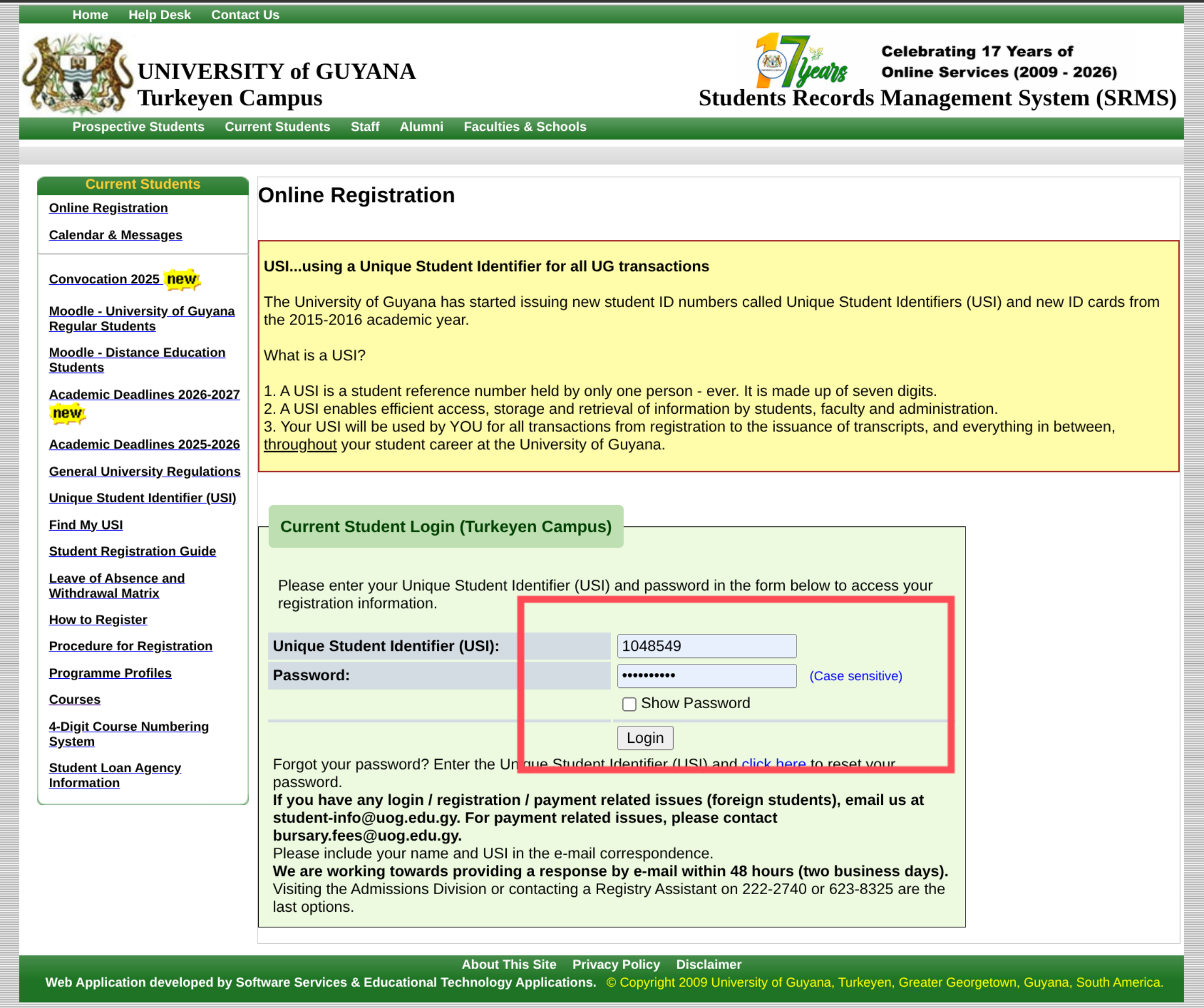
Forgot your password? Use the click here to reset your password link under the form.
2. Open your Academic Profile
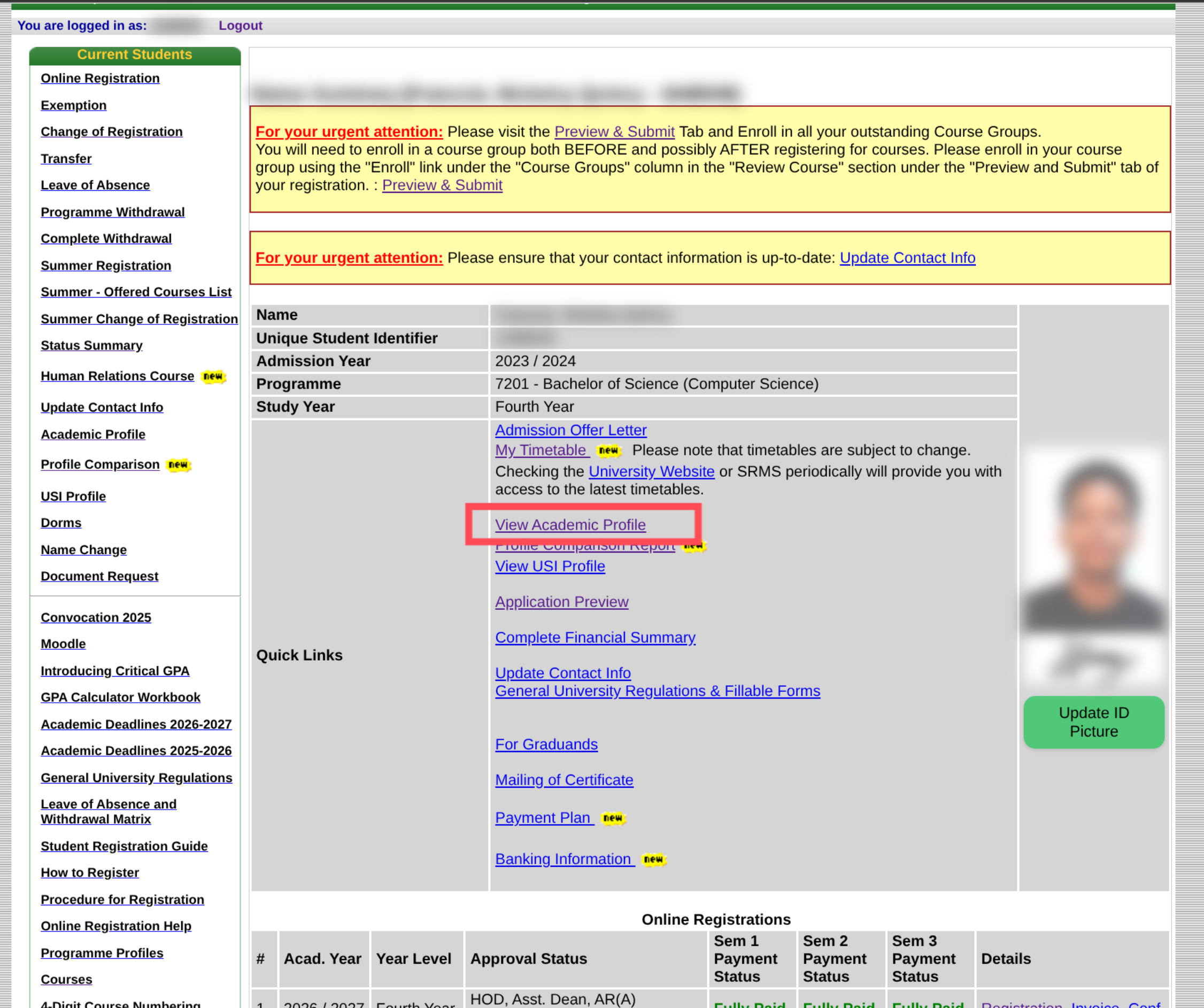
On your SRMS home page, under Quick Links, click View Academic Profile. (It's also in the left menu as Academic Profile.)
3. Find your overall TGP
Near the top of your Academic Profile is a summary table. Your TGP is the row Total Grade Points. Overall GPA is a few rows below it.
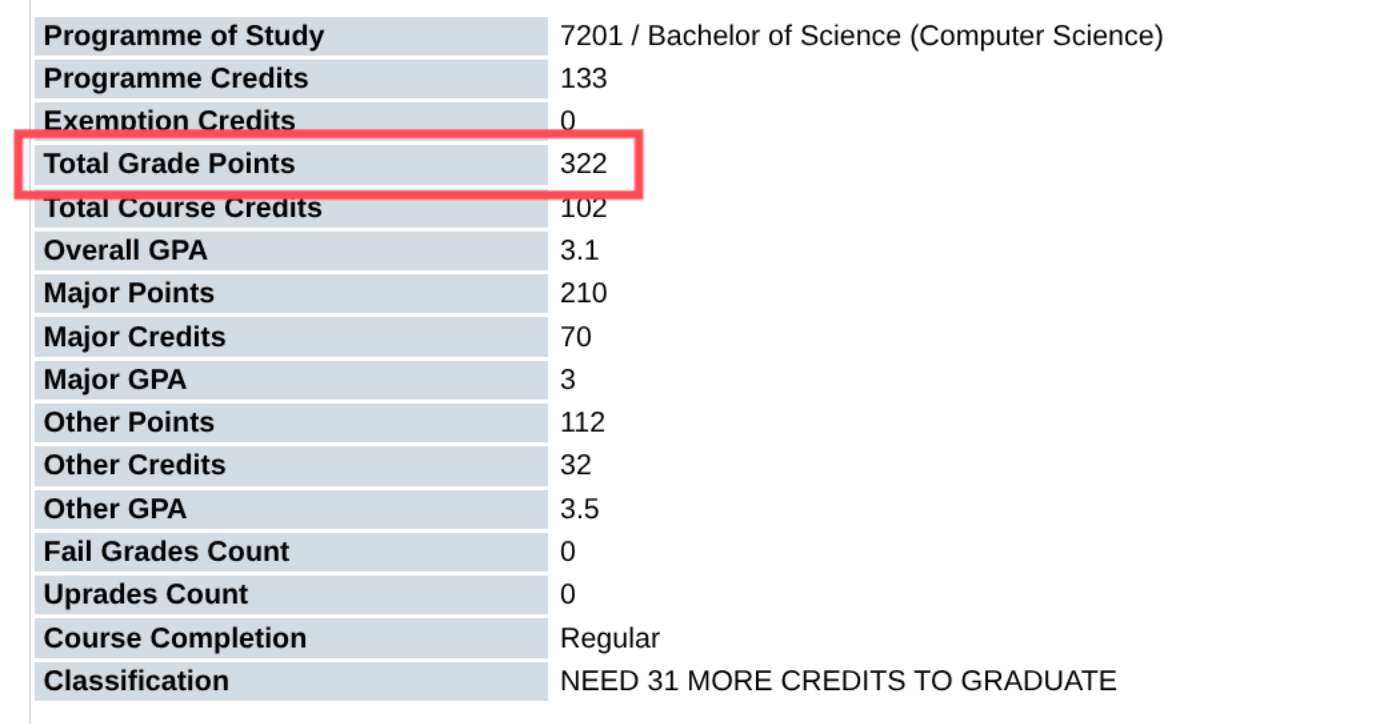
These two numbers are what RankUoG asks for: Total Grade Points goes in the TGP box, Overall GPA in the GPA box.
4. Your points for each year
Further down, the profile lists your courses year by year. In each course row, Points is the course's credits × your grade's points (for example, 4 credits at an A is 16). The bottom row of each year's table adds them up: that's the TGP you earned that year.
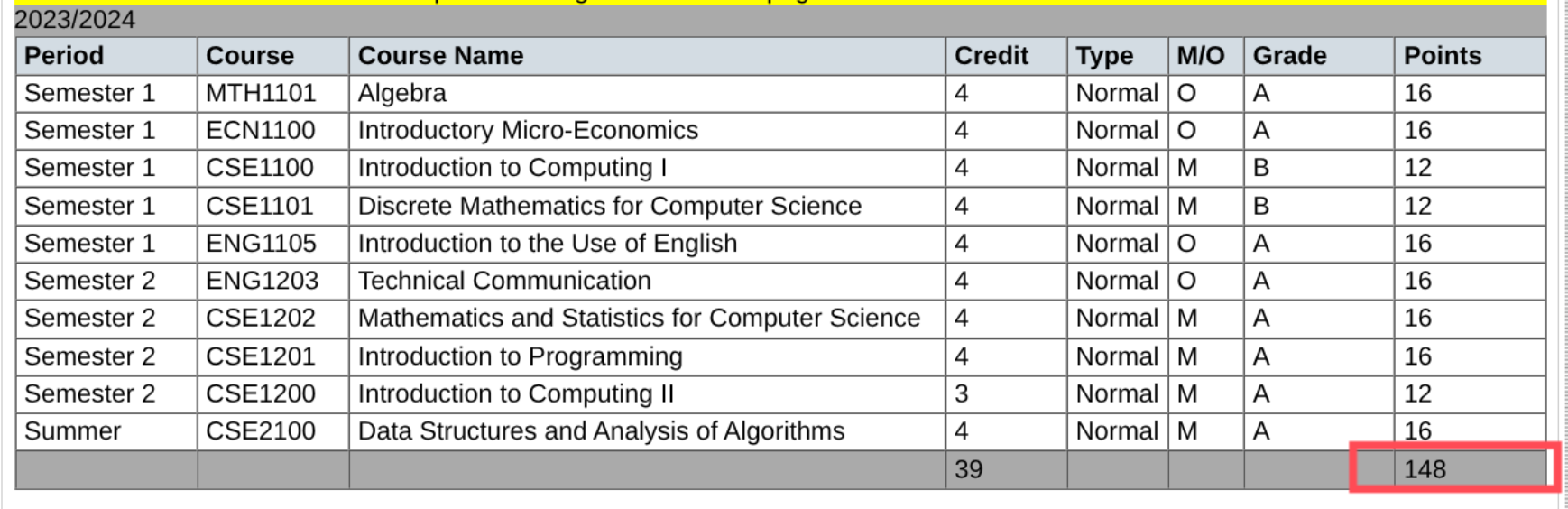
Your overall TGP is the total of all your years. RankUoG only needs the overall number.
5. Save a copy for verification
To get a verified check on RankUoG, you'll upload a copy of this page:
- On your Academic Profile, click Print at the top of the page.
- In your browser's print window, choose Save as PDF (or take a screenshot) and save it.
- Make sure your name, USI, Overall GPA and Total Grade Points are visible.
6. Enter them on RankUoG
-
New to RankUoG? Enter your GPA and TGP on the sign-up form, under your start year.
-
Already have an account? Either:
- on the leaderboard, click Update GPA / TGP (top right on a computer, the ✎ button next to Filters on a phone), or
- go to Settings → GPA by Academic Year and click Add TGP.
If you haven't added a TGP yet, RankUoG also asks for it when you next visit.
-
To verify: go to Settings → GPA verification → Upload document and choose the PDF or screenshot from step 5. An admin checks it against what you entered (see Verification).
Your TGP should be roughly 150 or less after Year 1 and 600 or less by the end of Year 4. If yours is much higher, check you copied Total Grade Points, not Programme Credits or another row.